> ## Documentation Index
> Fetch the complete documentation index at: https://langchain-5e9cc07a-preview-change-1791323909-75c753a.mintlify.site/llms.txt
> Use this file to discover all available pages before exploring further.

# LangSmith Engine on Self-hosted

> Set up LangSmith Engine on a self-hosted LangSmith instance, including model provider options and external network requirements.

<Info>
  Self-hosted Engine requires LangSmith Helm chart `0.16.0` or later and a license that includes the Engine entitlement. It is not available on earlier chart versions. [Contact our sales team](https://www.langchain.com/contact-sales) to have the entitlement added to your order.

  Running Engine on [your own model providers](#your-own-model-providers) and [air-gapped installations](#air-gapped-installations) require LangSmith Helm chart `0.17.0` or later. Earlier chart versions run Engine only on [LangSmith Intelligence](#langsmith-intelligence).
</Info>

LangSmith Engine is an agent within LangSmith that monitors your production traces, clusters them into issues, diagnoses each issue against your source code, proposes a fix as a PR, and identifies ground truth evals to add to your datasets. For a product overview, see [Engine](/langsmith/engine-overview).

In self-hosted LangSmith, Engine's orchestration, including its detect, fix, and verify loop, runs inside your VPC as part of LangSmith. An Organization Admin chooses where Engine's model calls run:

* **LangSmith Intelligence (LSI):** a LangChain-managed zero data retention (ZDR) service that runs Engine's models for you.
* **Your own model providers:** Anthropic, OpenAI, Amazon Bedrock, Google Vertex AI, or Azure AI Foundry, with credentials or cloud identity you control.

Engine reports usage metadata to LangSmith Intelligence for billing, unless your installation is [air-gapped](#air-gapped-installations).

This page covers what Engine depends on outside your environment, how to [choose how Engine runs its models](#choose-how-engine-runs-its-models), and how to [install Engine](#install-engine) on your instance. To connect Engine to your source code, create and configure your own GitHub App as described in [Connect Engine to GitHub](/langsmith/engine-github).

Engine works with two kinds of data:

* **Code** (optional)**:** Your agent's source, which Engine reads to diagnose issues and propose fixes.
* **Traces:** Runtime data from your agents, which can include user messages, tool outputs, and PII.

To diagnose issues, generate fixes, and write evaluators, Engine sends the parts of this data it needs to its models, on [LangSmith Intelligence or your own model providers](#choose-how-engine-runs-its-models).

## Choose how Engine runs its models

Each organization chooses how Engine runs its models under **Settings > Engine > Model providers**.

| | **LangSmith Intelligence** | **Your own model providers** |
| - | - | - |
| **Who runs the models** | LangChain, with the providers it selects | Your provider accounts |
| **Credentials** | None. Engine authenticates with your LangSmith license. | API keys or cloud identity you provide |
| **Model selection** | Managed and tuned by LangChain | Managed by LangChain, within the model families your providers offer |
| **Data processing agreement** | LangChain's, with ZDR for every provider | Yours, with each provider you use |
| **Billing** | LangChain bills Engine's usage in LSUs. | Your provider bills you for model calls. LangChain bills Engine's usage in LSUs, at a lower rate than LangSmith Intelligence. |
| **Availability** | AWS US | Any cloud, with supported models and endpoints your cluster can reach |

For LangSmith Intelligence in other clouds or regions, [contact our sales team](https://www.langchain.com/contact-sales).

<Columns cols={2}>
  <Frame caption="LangSmith Intelligence: Engine runs in your VPC; LSI and Bedrock run in LangChain's AWS environment.">
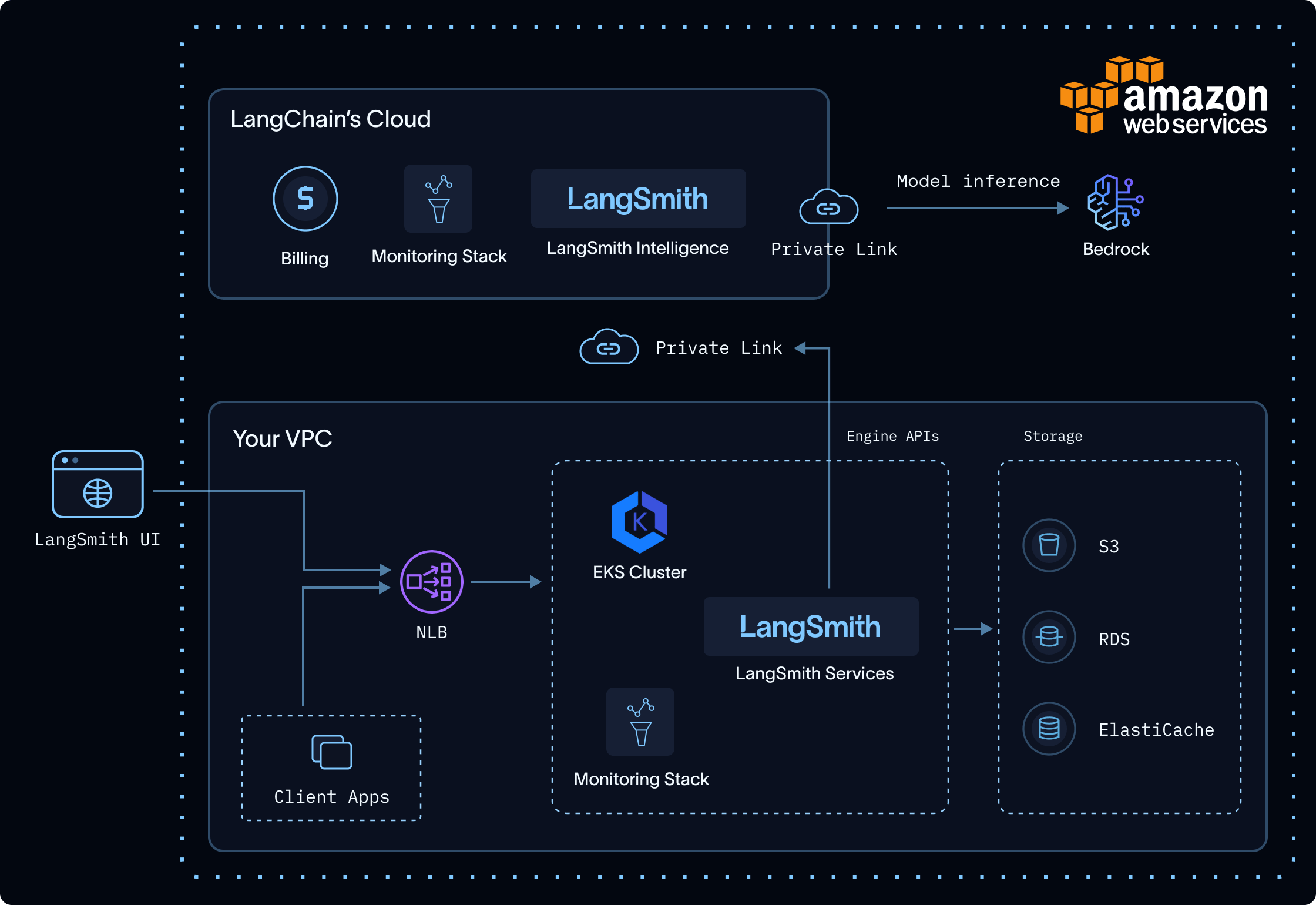
    <img src="https://mintcdn.com/langchain-5e9cc07a-preview-change-1791323909-75c753a/ge5053CBrIHlLmzU/langsmith/images/engine-self-hosted-aws.png?fit=max&auto=format&n=ge5053CBrIHlLmzU&q=85&s=cbfdb1ced8bcabb28b03189f3038c824" alt="Architecture diagram of self-hosted LangSmith in your VPC connected to LangSmith Intelligence and Bedrock in LangChain's AWS environment." width="2240" height="1540" data-path="langsmith/images/engine-self-hosted-aws.png" />
  </Frame>

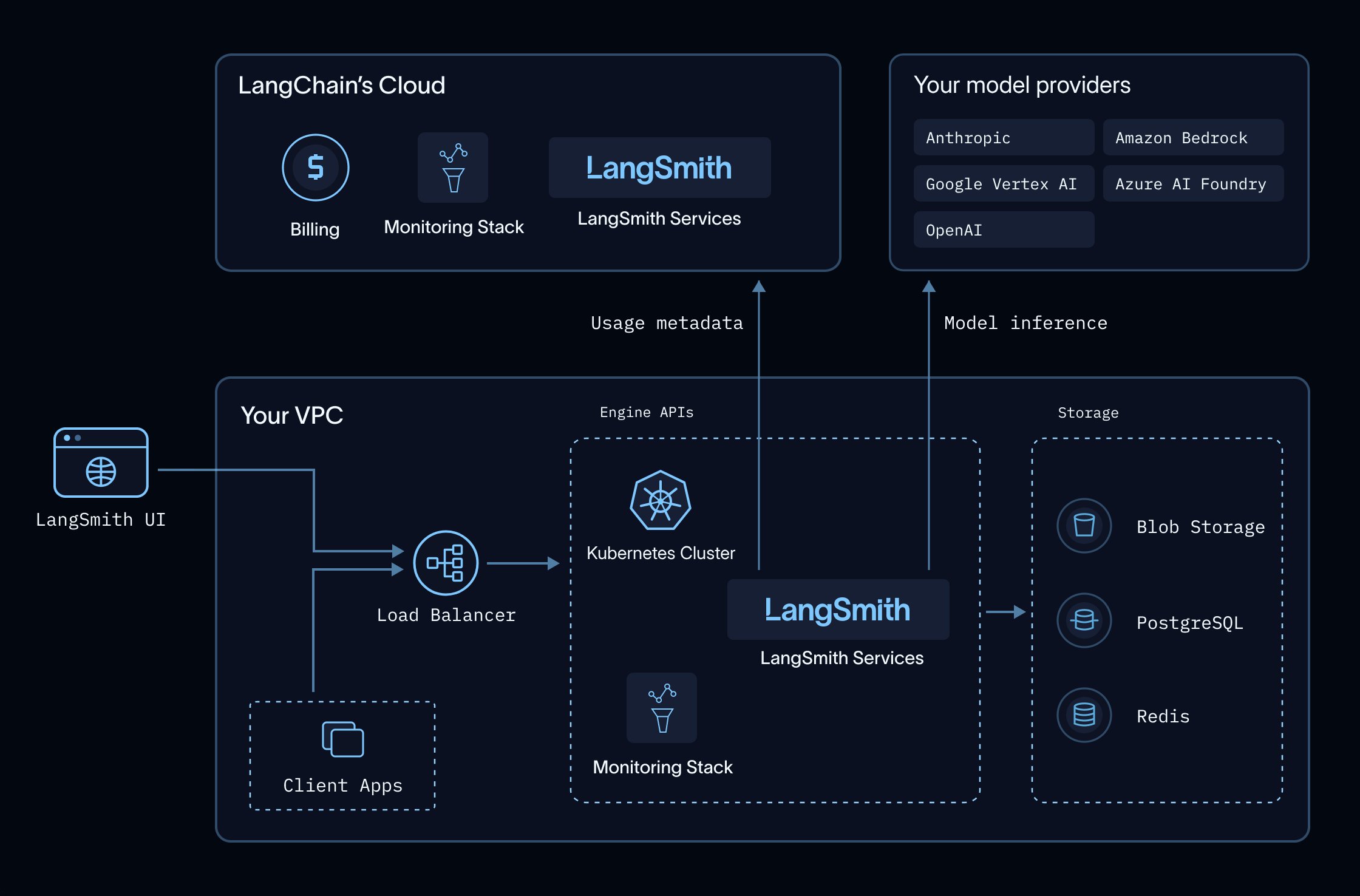
  <Frame caption="Your own model providers: Engine runs in your VPC and calls your providers directly; only usage metadata goes to LangChain.">
    <img src="https://mintcdn.com/langchain-5e9cc07a-preview-change-1791323909-75c753a/ge5053CBrIHlLmzU/langsmith/images/engine-self-hosted-byok.png?fit=max&auto=format&n=ge5053CBrIHlLmzU&q=85&s=37ae9670e6f09ea5f3a7cc76c1749cd7" alt="Architecture diagram of self-hosted LangSmith in your VPC sending model inference to your model providers and usage metadata to LangChain's cloud." width="2240" height="1476" data-path="langsmith/images/engine-self-hosted-byok.png" />
  </Frame>
</Columns>

### LangSmith Intelligence

LSI is a LangChain-managed service that runs Engine's models. Engine sends its model requests to `https://beacon.aws.langchain.com/intelligence`, authenticated with your LangSmith license, so you don't provide model-provider credentials. Each request carries the trace content, code, and intermediate outputs Engine needs to do its work.

Engine uses different models, each tuned for its role, to cluster issues, diagnose root causes against your code, generate fixes, and write evaluators that verify them. LangChain tunes these models for quality and token efficiency, and updates them as better models become available.

Your cluster must allow outbound HTTPS to that gateway. The connection can use public egress or private connectivity. To keep Engine traffic on private networking, follow [Connect with AWS PrivateLink](#connect-with-aws-privatelink).

If the connection to LSI is unavailable, Engine stops and returns an error. The rest of your LangSmith deployment is unaffected, and Engine tries again on its next scheduled scan.

### Your own model providers

Engine calls your providers directly from your cluster. Prompts and responses go only to your provider, under your agreement with that provider. LangChain doesn't receive them.

Engine supports Anthropic, OpenAI, Amazon Bedrock, Google Vertex AI, and Azure AI Foundry. It uses a mix of models from the providers you select, so for the best results, add credentials for every provider you have access to.

Enable access to Anthropic's Claude models and OpenAI's GPT models in your provider accounts, where your provider offers them. On Azure, use an Azure AI Foundry resource. To confirm that Engine can reach the models it uses, run [**Test connection**](#test-a-provider).

## Where Engine processes and stores data

In a self-hosted deployment, Engine separates data handling between your environment and LangChain's:

* **Your environment:** Engine orchestration and LangSmith-stored traces remain in your self-hosted environment.
* **LangChain's environment, with LangSmith Intelligence:** LSI and the model provider process content that Engine sends. LSI retains only [usage metadata](#what-langsmith-intelligence-retains).
* **Your model providers, with your own providers:** Your providers process content that Engine sends, under your agreements with them. LangChain receives only [usage metadata](#what-langsmith-intelligence-retains).

If you enable external notifications, Engine also sends notification content to your configured Slack channels or webhook endpoints. For Slack app setup and the content sent to Slack, see [Connect self-hosted LangSmith to Slack](/langsmith/self-host-slack).

### What LangSmith Intelligence retains

LSI does not persist the content of prompts or model responses. It retains the following metadata for usage attribution and billing:

* Account, workspace, and project identifiers used to attribute usage.
* Model and token-usage metadata used for billing.

When Engine runs on your own model providers, this metadata is all LSI receives. Your self-hosted LangSmith records Engine's usage and reports it to the endpoint in [`engine.intelligenceBaseUrl`](#allow-egress-to-langsmith-intelligence) every hour, authenticated with your license.

Engine's deployment-independent data handling, including zero data retention with every model provider LangChain uses and no use of customer data to train or fine-tune models, is described in [Engine security](/langsmith/engine-security).

## Install Engine

Engine is disabled by default. It requires [Sandboxes](/langsmith/deploy-self-hosted-full-platform#enable-sandboxes), a connection to [LangSmith Intelligence](#allow-egress-to-langsmith-intelligence) unless your installation is [air-gapped](#air-gapped-installations), an externally reachable [`config.hostname`](#verify-your-hostname-is-externally-reachable), and [Engine's keys](#generate-engines-keys). Complete the prerequisites before enabling Engine.

Engine and [Insights](/langsmith/deploy-self-hosted-full-platform#enable-fleet-insights-and-chat) run from the same image and share one deployment. Insights is not required for Engine. If your installation already runs Insights, enabling Engine adds configuration rather than new pods.

### Components

Enabling Engine provisions or reuses:

* `standalone-insights-api-server`: serves both the `engine` and `insights` graphs.
* `standalone-insights-queue`: background run processing for Engine and Insights.
* A dedicated PostgreSQL and Redis instance for the shared deployment, each replaceable with an external instance.
* The sandbox components described under [Enable Sandboxes](/langsmith/deploy-self-hosted-full-platform#enable-sandboxes).

Engine also adds configuration to `platform-backend` and `ingest-queue`, which dispatch and schedule its runs.

### Prerequisites

<Steps>
  <Step title="Enable Sandboxes">
    Complete [Enable Sandboxes](/langsmith/deploy-self-hosted-full-platform#enable-sandboxes) first, including the KVM-capable node pool and JuiceFS storage.

    Engine's sandboxes are associated with one workspace. An install with Engine must have a [shared organization](/langsmith/administration-overview#organizations). If the shared organization has exactly one workspace, LangSmith uses that workspace. If the shared organization has more than one workspace, LangSmith does not choose one automatically. You must set `engine.sandboxTenantId` to the workspace ID.

    <Warning>
      Use a workspace reserved for Engine:

      * Engine's sandboxes are not billed on the Sandboxes product because Engine meters its own usage in LSUs.
      * Engine's sandboxes use the same concurrent sandbox, CPU, and memory quotas as other sandboxes in the workspace. If the workspace is near its limits, Engine runs can fail or leave less capacity for interactive sandboxes.
      * Engine's sandboxes are listed in that workspace and can be stopped by anyone with access to it.
      * Each sandbox runs agent-generated code.
      * Repository credentials remain in the sandbox auth proxy and are not available to code running inside the sandbox.
    </Warning>
  </Step>

  <Step title="Confirm the license entitlement">
    Engine is licensed separately, in the same way as Sandboxes. Your license must carry the Engine entitlement. LangSmith validates your license key against `https://beacon.langchain.com` at startup and periodically thereafter, so the entitlement takes effect without you changing any configuration once it is added to your order.
  </Step>

  <Step title="Allow egress to LangSmith Intelligence and your model providers" id="allow-egress-to-langsmith-intelligence">
    Set `engine.intelligenceBaseUrl` for how Engine will run its models, and allow outbound HTTPS from the cluster to that URL:

    | **Engine runs its models on** | **`engine.intelligenceBaseUrl`** |
    | - | - |
    | LangSmith Intelligence | `https://beacon.aws.langchain.com/intelligence` |
    | Your own model providers | `https://beacon.langchain.com/intelligence` (the default) |
    | Your own model providers, air-gapped | `""` (see [Air-gapped installations](#air-gapped-installations)) |

    The AWS URL also records usage, so it works for organizations on either option. The default URL only records usage, on the same host self-hosted LangSmith already uses for license verification and billing telemetry, so it adds a path rather than a new egress destination.

    If Engine will run on your own model providers, also allow outbound HTTPS from the `standalone-insights` pods to each provider's API endpoint. To keep that traffic on private networking, see [Connect to your providers privately](#connect-to-your-providers-privately).

    Add each destination as a specific allowlist entry rather than opening general egress. To keep traffic to LangSmith Intelligence on private networking, [connect with AWS PrivateLink](#connect-with-aws-privatelink). Requests to LangSmith Intelligence use a short-lived license JWT obtained during LangSmith license verification. Engine's traffic is separate from the billing and operational telemetry described in [Configure egress](/langsmith/self-host-egress), even where it shares a host.
  </Step>

  <Step title="Verify your hostname is externally reachable" id="verify-your-hostname-is-externally-reachable">
    Engine's sandboxes call your LangSmith install using the `langsmith` CLI, so `config.hostname` must be reachable from the sandbox network. Helm validation rejects `localhost` and in-cluster `*.svc` addresses.

    Serve that hostname through your ingress with TLS, as described in [Set up an ingress](/langsmith/self-host-ingress). Engine does not require you to expose anything beyond the address your own users already reach. Sandbox egress is allowlisted to your LangSmith hostname, `github.com`, `api.github.com`, and the Python package registries. Per-run credentials are injected by a proxy outside the sandbox rather than being readable inside it.
  </Step>

  <Step title="Generate Engine's keys" id="generate-engines-keys">
    Engine needs two keys of its own:

    * **Encryption key** (`engine_encryption_key`): a Fernet key that encrypts the run payloads LangSmith passes to Engine, which carry short-lived credentials.

      ```bash theme={null}
      python -c "from cryptography.fernet import Fernet; print(Fernet.generate_key().decode())"
      ```

    * **Usage signing secret** (`engine_usage_signing_secret`): signs the usage reports Engine sends to LangSmith. Use at least 32 random characters.

      ```bash theme={null}
      openssl rand -hex 32
      ```

    Store both in your predefined Kubernetes Secret before installing or upgrading the chart. See [Use an existing secret](/langsmith/self-host-using-an-existing-secret#parameters). When Helm can read the existing Secret from the cluster, the chart checks for both keys and names any that are missing. `helm template` and GitOps renders skip that lookup, so verify the keys are present separately.

    To rotate the encryption key, copy the current value to `engine_encryption_key_previous` and set the new key as `engine_encryption_key`. The previous key is accepted for decryption only, so runs encrypted just before the swap still complete.

    When introducing or rotating the usage signing secret, pause new Engine work and wait for running scans to finish. Update `platform-backend`, `ingest-queue`, and the shared Engine and Insights API server and queue to use the same signing secret. After all four components are healthy, resume Engine and [verify an analysis and Engine usage](#verify-the-installation). The previous encryption key does not provide a fallback for usage signatures.
  </Step>
</Steps>

### Enable with Helm

Add the following to your [`langsmith_config.yaml`](/langsmith/kubernetes#configure-your-helm-charts), alongside the complete Sandboxes values from [Enable Sandboxes](/langsmith/deploy-self-hosted-full-platform#enable-sandboxes). These examples show only the Engine-specific values and the `sandboxes.enabled` flag.

<Tabs>
  <Tab title="Using Kubernetes secrets (recommended)">
    Reference your existing Secret by name. The chart reads `engine_encryption_key` and `engine_usage_signing_secret` from it.

    ```yaml theme={null}
    config:
      existingSecretName: "<your-secret-name>"
      # Must be reachable from the sandbox network.
      hostname: "https://langsmith.example.com"

    engine:
      enabled: true
      intelligenceBaseUrl: "https://beacon.aws.langchain.com/intelligence"

    sandboxes:
      enabled: true
    ```
  </Tab>

  <Tab title="Using inline values">
    Set Engine's keys directly in your config file.

    <Warning>
      This puts live credentials in your config file. Do not commit it to version control; prefer the Kubernetes Secret.
    </Warning>

    ```yaml theme={null}
    config:
      hostname: "https://langsmith.example.com"

    engine:
      enabled: true
      intelligenceBaseUrl: "https://beacon.aws.langchain.com/intelligence"
      encryptionKey: "<engine-encryption-key>"
      usageSigningSecret: "<engine-usage-signing-secret>"

    sandboxes:
      enabled: true
    ```
  </Tab>
</Tabs>

<Note>
  If your install has a shared organization with more than one workspace, set the workspace that owns Engine's sandboxes:
</Note>

```yaml theme={null}
engine:
  sandboxTenantId: "<workspace-id>"
```

#### Use cloud identity for your model providers

Amazon Bedrock, Google Vertex AI, and Azure AI Foundry can authenticate with the cloud identity of Engine's pods instead of credentials saved in LangSmith. List those providers in `engine.workloadIdentityProviders`. Configure identity for both the API server and queue of the shared Engine and Insights deployment:

<Tabs>
  <Tab title="Amazon EKS">
    Configure IAM roles for service accounts (IRSA). Trust the namespace and service account of both Engine workloads, and grant the role access to the Bedrock models Engine uses.

    ```yaml theme={null}
    engine:
      workloadIdentityProviders:
        - bedrock

    engineInsightsAgent:
      apiServer:
        serviceAccount:
          annotations:
            eks.amazonaws.com/role-arn: "arn:aws:iam::<account-id>:role/<engine-model-access-role>"
      queue:
        serviceAccount:
          annotations:
            eks.amazonaws.com/role-arn: "arn:aws:iam::<account-id>:role/<engine-model-access-role>"
    ```
  </Tab>

  <Tab title="Google GKE">
    Enable Workload Identity Federation for GKE on the cluster and the node pools that run Engine. Grant each Engine Kubernetes service account `roles/iam.workloadIdentityUser` on the Google service account. Bind each member as `serviceAccount:<cluster-project-id>.svc.id.goog[<namespace>/<kubernetes-service-account>]`.

    Grant the Google service account Vertex AI inference permissions, such as `roles/aiplatform.user`, in the project that hosts the models. Enable the required models in that project.

    ```yaml theme={null}
    engine:
      workloadIdentityProviders:
        - vertex

    engineInsightsAgent:
      apiServer:
        serviceAccount:
          annotations:
            iam.gke.io/gcp-service-account: "<service-account>@<project-id>.iam.gserviceaccount.com"
        deployment:
          extraEnv:
            - name: GOOGLE_CLOUD_PROJECT
              value: "<vertex-project-id>"
      queue:
        serviceAccount:
          annotations:
            iam.gke.io/gcp-service-account: "<service-account>@<project-id>.iam.gserviceaccount.com"
        deployment:
          extraEnv:
            - name: GOOGLE_CLOUD_PROJECT
              value: "<vertex-project-id>"
    ```

    Engine uses Application Default Credentials (ADC) to resolve the identity and project. Set `GOOGLE_CLOUD_PROJECT` on both workloads to the intended Vertex AI project. Engine currently uses the `global` Vertex AI location; the required models must be available there.
  </Tab>

  <Tab title="Azure AKS">
    Enable the AKS OIDC issuer and Microsoft Entra Workload ID. Create a federated identity credential for each Engine Kubernetes service account on your managed identity. Use the cluster's OIDC issuer, audience `api://AzureADTokenExchange`, and subject `system:serviceaccount:<namespace>:<kubernetes-service-account>` for each.

    Grant the identity the Cognitive Services User role, scoped to the Azure AI Foundry resource that hosts Engine's models. An Azure OpenAI role alone does not establish access to Claude models.

    ```yaml theme={null}
    engine:
      workloadIdentityProviders:
        - azure

    engineInsightsAgent:
      apiServer:
        serviceAccount:
          annotations:
            azure.workload.identity/client-id: "<managed-identity-client-id>"
        deployment:
          labels:
            azure.workload.identity/use: "true"
      queue:
        serviceAccount:
          annotations:
            azure.workload.identity/client-id: "<managed-identity-client-id>"
        deployment:
          labels:
            azure.workload.identity/use: "true"
    ```

    Both workloads need the service account annotation and pod label. Save the Foundry resource name under **Settings > Engine > Model providers**.
  </Tab>
</Tabs>

<Warning>
  A provider listed in `engine.workloadIdentityProviders` counts as configured without saved credentials, so any Organization Admin can select it. Scope the identity to the models Engine uses.
</Warning>

Saved credentials take precedence over cloud identity. When switching a provider, apply the cloud identity configuration before removing its saved credentials. Then remove only that provider's saved API keys or service account JSON under **Settings > Engine > Model providers**. For Bedrock, also remove any saved access key, secret access key, and session token. Keep the Azure AI Foundry resource name and any Bedrock region setting, then [test the provider](#test-a-provider) again.

<Warning>
  Upgrades from older Insights image pins require one extra check: if your values pin `images.engineInsightsAgentImage.repository` to the retired `langsmith-clio` image, remove or update that pin. Engine and Insights now run on `langsmith-insights-engine`, and the chart rejects `langsmith-clio`. For more information, see [Mirror images for your LangSmith installation](/langsmith/self-host-mirroring-images#additional-images-for-engine).
</Warning>

Validate the updated chart before applying it:

```bash theme={null}
helm template langsmith langchain/langsmith \
  --values langsmith_config.yaml \
  --version <version> \
  --namespace <namespace>
```

The chart validates Engine values at render time and names missing values. This command does not check keys in an existing Kubernetes Secret; verify those before applying the chart.

Apply the updated chart:

```bash theme={null}
helm upgrade -i langsmith langchain/langsmith \
  --values langsmith_config.yaml \
  --version <version> \
  --namespace <namespace> \
  --wait
```

### Verify the installation

Confirm the shared Engine and Insights deployment is running:

```bash theme={null}
kubectl get pods -n <namespace> | grep standalone-insights
```

Both the API server and queue pods should be `Running`. Then, confirm `platform-backend` is healthy, since it dispatches Engine runs:

```bash theme={null}
kubectl rollout status deployment/langsmith-platform-backend -n <namespace>
```

If Engine does not appear in the LangSmith UI after this, the most common causes are a license without the Engine entitlement and the organization-level toggle described in [Turn on Engine in LangSmith](#turn-on-engine-in-langsmith).

After [enabling and configuring Engine](#turn-on-engine-in-langsmith) in the LangSmith UI, [test each selected provider](#test-a-provider), then start an Engine analysis and confirm that results appear for the tracing project. This verifies the complete path through Engine, Sandboxes, and your model providers or LangSmith Intelligence. Running pods alone does not verify that path.

Check Engine usage under **Settings > Engine** for aggregate spend by workspace and project. Usage reporting and billing updates are asynchronous, so spend may appear later than the analysis results. For an air-gapped installation, verify the recorded usage through [Usage export](#air-gapped-installations).

If the analysis does not complete, check that Engine pods are running, the sandbox workspace has quota available, and the cluster can reach your model providers or the LangSmith Intelligence gateway URL configured in `engine.intelligenceBaseUrl`.

### Turn on Engine in LangSmith

Enabling Engine in Helm makes the feature available; it does not start any scans. After enabling the chart values, finish setup in LangSmith:

1. An [Organization Admin](/langsmith/rbac#organization-admin) turns Engine on for the organization under **Settings > Engine**. For more information, see [Find and fix issues](/langsmith/engine#enable-engine-for-your-organization).
2. An Organization Admin [chooses how Engine runs its models](#choose-model-providers) under **Settings > Engine > Model providers**. Engine doesn't start any runs until this is saved.
3. A user whose [role](/langsmith/rbac) can update tracing projects turns on Engine for a tracing project from its **Engine** tab. For more information, see [Set up Engine](/langsmith/engine#set-up-engine).

### Choose model providers

Under **Settings > Engine > Model providers**, an Organization Admin selects LangSmith Intelligence, one or more of your own providers, or both. Credentials are saved as organization secrets and apply to every workspace in the organization.

LangSmith Intelligence appears only when your installation's `engine.intelligenceBaseUrl` serves Engine's models.

When LangSmith Intelligence is available and selected, it takes priority over your selected providers. Leave it unselected to keep inference on your own providers.

Engine selects models from the providers you enable. Model requirements follow the Engine image tag in `images.engineInsightsAgentImage.tag`, not the Helm chart version. For these images, grant access to the following models in each selected provider:

| **Provider** | **Engine `0.17.29rc7`** | **Engine `0.17.29rc11`** |
| - | - | - |
| Anthropic | `claude-opus-5` | `claude-opus-5-5` |
| Amazon Bedrock | `anthropic.claude-opus-5` | `anthropic.claude-opus-5-5` |
| Google Vertex AI | `claude-opus-5` | `claude-opus-5-5` |
| Azure AI Foundry | `claude-opus-5`, `gpt-5.6-sol` | `claude-opus-5-5`, `gpt-5.6-sol` |
| OpenAI | `gpt-5.6-sol` | `gpt-5.6-sol` |

To use your own providers:

<Steps>
  <Step title="Add credentials">
    Click **Add credentials** next to the provider and enter:

    <Tabs>
      <Tab title="Anthropic">
        An Anthropic API key.
      </Tab>

      <Tab title="Amazon Bedrock">
        An AWS access key ID and secret access key, with an optional session token, or a Bedrock API key (bearer token). Optionally, an AWS region.

        Engine uses the Bedrock Mantle API. Enable access to the listed Claude model in the selected AWS account and region. Grant the calling identity Mantle inference and model-subscription permissions; see [AmazonBedrockMantleInferenceAccess](https://docs.aws.amazon.com/aws-managed-policy/latest/reference/AmazonBedrockMantleInferenceAccess.html) for the required actions.

        If no region is saved, Engine uses `us-east-1`, including with workload identity. It does not inherit the EKS cluster's region.

        To use the cloud identity of Engine's pods instead, see [Use cloud identity for your model providers](#use-cloud-identity-for-your-model-providers).
      </Tab>

      <Tab title="Google Vertex AI">
        A service account key in JSON format. Engine uses the JSON's `project_id` as the inference project and calls the `global` location.

        Enable the required Claude model through [Model Garden](https://docs.cloud.google.com/gemini-enterprise-agent-platform/models/partner-models/use-partner-models) in that project. Grant the service account `roles/aiplatform.user` in the same project.

        To use the cloud identity of Engine's pods instead, see [Use cloud identity for your model providers](#use-cloud-identity-for-your-model-providers).
      </Tab>

      <Tab title="Azure AI Foundry">
        Confirm that your resource region has access and quota for both models listed for your Engine image. To configure Azure:

        1. Create both model deployments in the same Azure AI Foundry resource. Use the model IDs in the table as the exact deployment names. Engine uses Claude as its primary model and GPT as its fallback. Custom deployment aliases are not supported for either model family.

           Follow the [Claude deployment instructions](https://platform.claude.com/docs/en/build-with-claude/claude-in-microsoft-foundry) and check [Azure OpenAI model availability](https://learn.microsoft.com/en-us/azure/ai-foundry/openai/how-to/responses). Accept the Azure Marketplace terms when creating your first Claude deployment.
        2. Enter an API key and the resource name, not its full URL. To use the cloud identity of Engine's pods instead of an API key, see [Use cloud identity for your model providers](#use-cloud-identity-for-your-model-providers).
        3. Run [**Test connection**](#test-a-provider) and confirm that both Claude and GPT requests succeed, including when selecting additional providers. After saving, [start an Engine analysis](#verify-the-installation) to verify the complete setup.
      </Tab>

      <Tab title="OpenAI">
        An OpenAI API key, and optionally your OpenAI organization ID.
      </Tab>
    </Tabs>

    A provider with complete credentials shows as configured. To change them later, click the key icon next to the provider.
  </Step>

  <Step title="Test the provider" id="test-a-provider">
    Click **Test connection**. Engine sends a small request to each model it uses on that provider, with the saved credentials or configured cloud identity. It shows whether each request succeeded and, if not, why.
  </Step>

  <Step title="Select providers and save">
    Select the providers Engine may use, then save.
  </Step>
</Steps>

If Engine runs fail after you save:

* **No provider selected:** Engine doesn't start runs until at least one provider is selected and saved.
* **Rejected credentials:** **Test connection** reports which provider rejected them. Update the credentials and test again.
* **Model not available:** enable the model in your provider account, then test again.

Connecting a GitHub repository is optional and improves Engine's diagnosis and fixes. Without one, Engine cannot read your source code or open pull requests. To create the GitHub App and configure `host-backend`, see [Connect Engine to GitHub](/langsmith/engine-github#self-hosted).

### Disable Engine

Set `engine.enabled` to `false` and re-apply:

```yaml theme={null}
engine:
  enabled: false
```

Engine stops dispatching runs. Insights shares the same deployment, so the `standalone-insights` pods keep running when `insights.enabled` is `true`.

## Connect privately

Engine works over public egress. To keep its traffic on private networking, connect to LangSmith Intelligence with AWS PrivateLink, or connect to your own model providers through your cloud's private endpoints.

### Connect with AWS PrivateLink

The LangSmith Intelligence gateway, `beacon.aws.langchain.com`, routes requests to Amazon Bedrock in LangChain's AWS environment.

Before configuring PrivateLink, complete [Install Engine](#install-engine), including its Helm and egress configuration.

[AWS PrivateLink](https://docs.aws.amazon.com/vpc/latest/privatelink/) routes Engine traffic from your VPC to LSI without exposing that traffic to the public internet. The LSI endpoint service is hosted in `us-east-2`, and AWS supports access from VPCs in other regions.

Before you begin, collect your AWS account ID, VPC ID, private subnet IDs, and a security group for the interface endpoint. Configure that endpoint security group to allow inbound TCP traffic on port 443 only from the security group attached to the nodes or workloads that run Engine, or from the smallest private CIDR that contains them. Do not allow `0.0.0.0/0`.

To connect your VPC to LSI:

<Steps>
  <Step title="Request access">
    Contact your account representative or [sales@langchain.dev](mailto:sales@langchain.dev) with your AWS account ID. LangChain adds your account to the endpoint service's allowed principals list.
  </Step>

  <Step title="Create the interface VPC endpoint">
    Configure the AWS provider for the region that contains your VPC. Keep `service_region` set to `us-east-2`, including when your VPC is in another region. Select one private subnet per availability zone.

    <Note>
      The `service_region` argument requires HashiCorp AWS provider `5.82.0` or later.
    </Note>

    ```hcl theme={null}
    resource "aws_vpc_endpoint" "langsmith_intelligence" {
      vpc_id              = var.vpc_id
      service_name        = "com.amazonaws.vpce.us-east-2.vpce-svc-054f37092752bff6b"
      service_region      = "us-east-2"
      vpc_endpoint_type   = "Interface"
      subnet_ids          = var.private_subnet_ids
      security_group_ids  = [var.security_group_id]
      private_dns_enabled = false
    }
    ```
  </Step>

  <Step title="Wait for LangChain to accept the connection">
    The endpoint status changes from `pendingAcceptance` to `available` after LangChain accepts the connection. Allow a few minutes for the change to propagate before testing connectivity.
  </Step>

  <Step title="Route the LSI hostname to the endpoint">
    Enable DNS resolution and DNS hostnames for your VPC. Then, create a Route 53 private hosted zone and alias record so `beacon.aws.langchain.com` resolves to the VPC endpoint inside your VPC. Keep this hostname unchanged so TLS certificate validation succeeds. The private hosted zone also prevents fallback to public DNS when the endpoint is unavailable.

    ```hcl theme={null}
    resource "aws_route53_zone" "langsmith_intelligence" {
      name = "beacon.aws.langchain.com"

      vpc {
        vpc_id = var.vpc_id
      }
    }

    resource "aws_route53_record" "langsmith_intelligence" {
      zone_id = aws_route53_zone.langsmith_intelligence.zone_id
      name    = "beacon.aws.langchain.com"
      type    = "A"

      alias {
        name                   = aws_vpc_endpoint.langsmith_intelligence.dns_entry[0].dns_name
        zone_id                = aws_vpc_endpoint.langsmith_intelligence.dns_entry[0].hosted_zone_id
        evaluate_target_health = true
      }
    }
    ```

    If workloads use a corporate DNS resolver instead of the Amazon-provided resolver, configure conditional forwarding to Route 53 Resolver or create an equivalent private DNS override for `beacon.aws.langchain.com` that points to the endpoint DNS name.
  </Step>

  <Step title="Verify private connectivity">
    From a node or container that runs Engine, resolve the gateway hostname:

    ```bash theme={null}
    getent ahostsv4 beacon.aws.langchain.com
    ```

    Confirm that the result contains the private IP addresses assigned to the endpoint network interfaces. Then start an analysis and confirm that it completes successfully. If the analysis does not complete, review the Engine installation and egress configuration.
  </Step>
</Steps>

### Connect to your providers privately

Engine calls each provider's standard API hostname from the `standalone-insights` pods. To keep that traffic off the public internet, set up your cloud's private connection to the provider so the same hostname resolves to private addresses inside your network:

| **Provider** | **Hostname Engine calls** | **Private connection** |
| - | - | - |
| Amazon Bedrock | `bedrock-mantle.<region>.api.aws` | An interface VPC endpoint for `com.amazonaws.<region>.bedrock-mantle`, with private DNS enabled or a Route 53 private hosted zone for the hostname |
| Google Vertex AI | `<region>-aiplatform.googleapis.com`, or `aiplatform.googleapis.com` for the global region | Private Service Connect for Google APIs, with private DNS for `googleapis.com` |
| Azure AI Foundry | `<resource>.openai.azure.com` and `<resource>.services.ai.azure.com` | A private endpoint for the Foundry resource, with its private DNS zones |
| Anthropic, OpenAI | `api.anthropic.com`, `api.openai.com` | Not available. These providers need public egress. |

Engine doesn't accept custom endpoint URLs, so private connectivity works through DNS: the standard hostname must resolve to your private endpoint from the Engine pods.

If Engine authenticates with [cloud identity](#use-cloud-identity-for-your-model-providers), the pods also need to reach your cloud's token service, such as an interface VPC endpoint for AWS STS on AWS.

With saved Vertex AI service account JSON, also allow HTTPS to `oauth2.googleapis.com` for token exchange, alongside `aiplatform.googleapis.com` for inference.

Usage reporting to LangSmith Intelligence is a separate connection. On AWS, `https://beacon.aws.langchain.com/intelligence` records usage and supports [AWS PrivateLink](#connect-with-aws-privatelink), so an installation can run Engine on Bedrock and report usage without public egress. The default `https://beacon.langchain.com/intelligence` needs public egress.

## Air-gapped installations

Installations with an offline license and no connection to LangSmith Intelligence can run Engine on their own model providers:

* Set `engine.intelligenceBaseUrl` to `""`.
* Choose your own model providers under **Settings > Engine > Model providers**. LangSmith Intelligence isn't available.
* Allow outbound HTTPS from the `standalone-insights` pods to your model providers, or route it through your own network path to them.

Engine records its usage in your installation. An Organization Admin downloads it with the rest of your usage from **Settings > Usage export** and sends it to your LangChain account team on the schedule in your agreement.

Air-gapped installations don't show Engine spend, and spend limits other than `0` aren't enforced. Set a limit of `0` to pause Engine for an organization or a project.

## See also

* [Engine](/langsmith/engine-overview)
* [Configure Engine](/langsmith/engine)
* [Connect Engine to GitHub](/langsmith/engine-github)
* [Engine security](/langsmith/engine-security)
* [Engine notifications](/langsmith/engine-notifications)
* [Connect self-hosted LangSmith to Slack](/langsmith/self-host-slack)
* [Enable additional LangSmith features](/langsmith/deploy-self-hosted-full-platform)

***

<div className="source-links">
  <Callout icon="terminal-2">
    [Connect these docs](/use-these-docs) to your agent of choice via MCP for real-time answers.
  </Callout>

  <Callout icon="edit">
    [Edit this page on GitHub](https://github.com/langchain-ai/docs/edit/main/src/langsmith/engine-self-hosted.mdx) or [file an issue](https://github.com/langchain-ai/docs/issues/new/choose).
  </Callout>
</div>